
Fill from production
Turn real traffic into dataset rows: tick runs, spans, conversations or verdicts and add them, or add a source, a saved filter on eval results that copies what matches once or keeps adding new matches every 15 minutes.
The rows worth keeping are already in your traces, and your evals have already said which ones went wrong. Add them by hand from any table, or save a filter as a source and let it fill the dataset.
Either way, each span, run or conversation becomes one row with its Input, Output, Evaluations and Links filled. Expected stays empty for you to label. A unit already in the dataset is skipped, so adding the same thing twice is safe.
Pick rows in a table
- Open Traces (its Conversations, Runs or Spans view), or an eval's Verdicts tab.
- Tick the rows you want. The bar at the bottom offers Add to dataset….
- Pick a dataset, or type a name and click New to make one.
On an eval's Verdicts, choose what the rows are: What it scored (the span, run or conversation each verdict graded) or The verdicts themselves (see Verdict rows).
For a single span, the Evaluate menu in its header has Add to dataset too.
A source
A source is a saved filter on a dataset. Open the dataset and choose + Add → Add source.
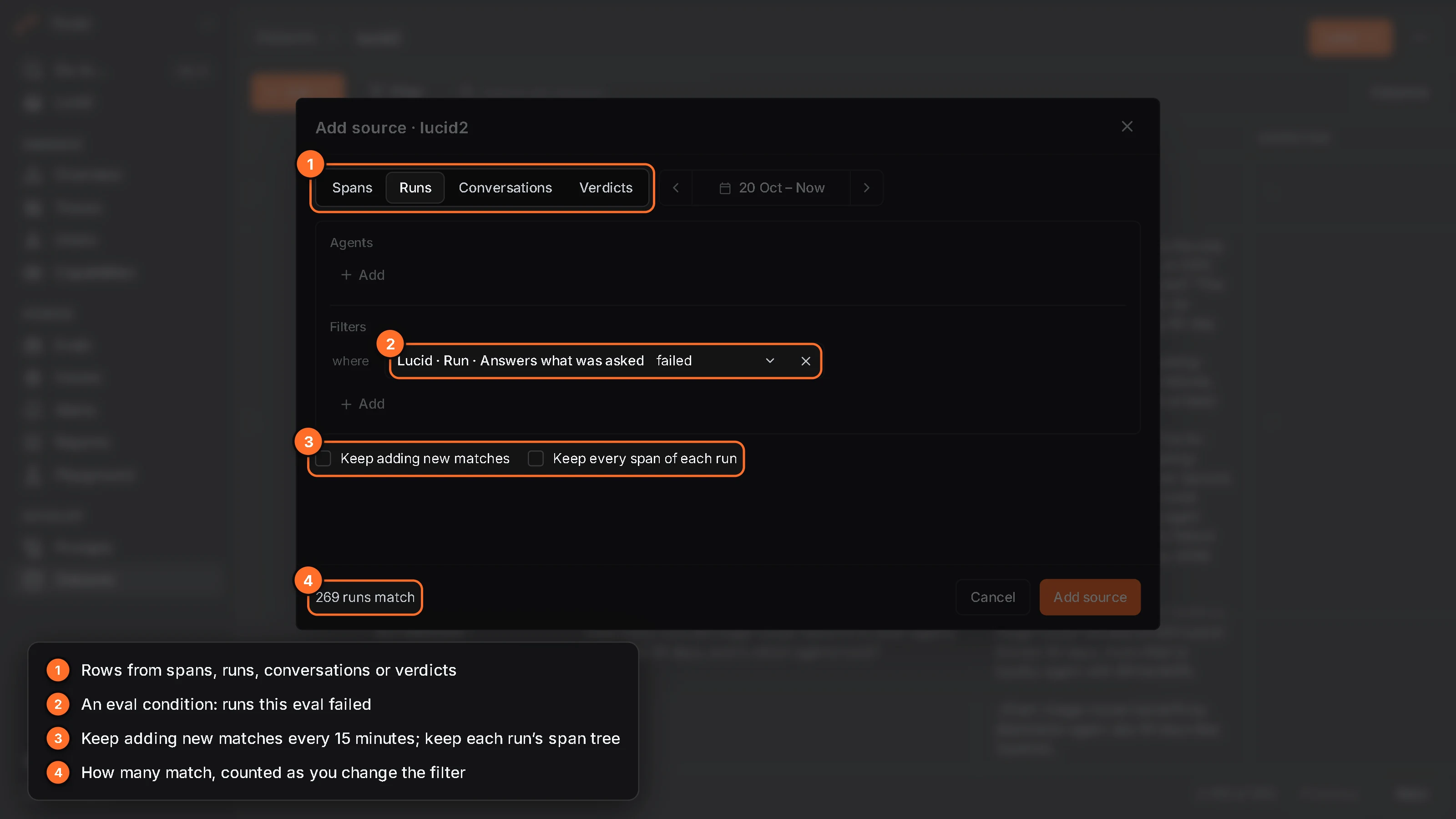
| Rows from | Filter | One row is |
|---|---|---|
| Spans | Traces and filters, eval conditions, a time window. LLM spans by default; tick Include non-LLM spans (or filter on the span kind) to add tool, retrieval and agent spans. | One span: its messages or arguments, what it returned, its verdicts. |
| Runs | Agents and filters, eval conditions, a time window. Tick Keep every span of each run to store the run's whole span tree on the row, so it survives trace retention and goes out with an export. | One run: its input, its final output, its verdicts. |
| Conversations | Agents, eval conditions, a time window. | One conversation: every turn as the Input, every reply as the Output. When the conversation grows, a live source brings the row up to date and leaves Expected alone. |
| Verdicts | Which evals, and verdicts that Failed, Passed, were Marked wrong or Marked right. | One verdict: see Verdict rows. |
The dialog counts the matches as you change the filter. The time window starts at the last 30 days; a relative window (last 7 days, last 30 days) is measured again at every run.
Then choose how it fills:
- Keep adding new matches off: the source copies what matches now, once.
- Keep adding new matches on: it also checks every 15 minutes and adds what has arrived since its last run.
Add source saves it and runs it right away.
By eval results
Eval conditions are what make a source useful: "runs where Answers what was asked failed", "spans where the judge scored under 0.4". In the filter, click + Add, open the Evals tab, pick an eval (or Any eval), then a condition.
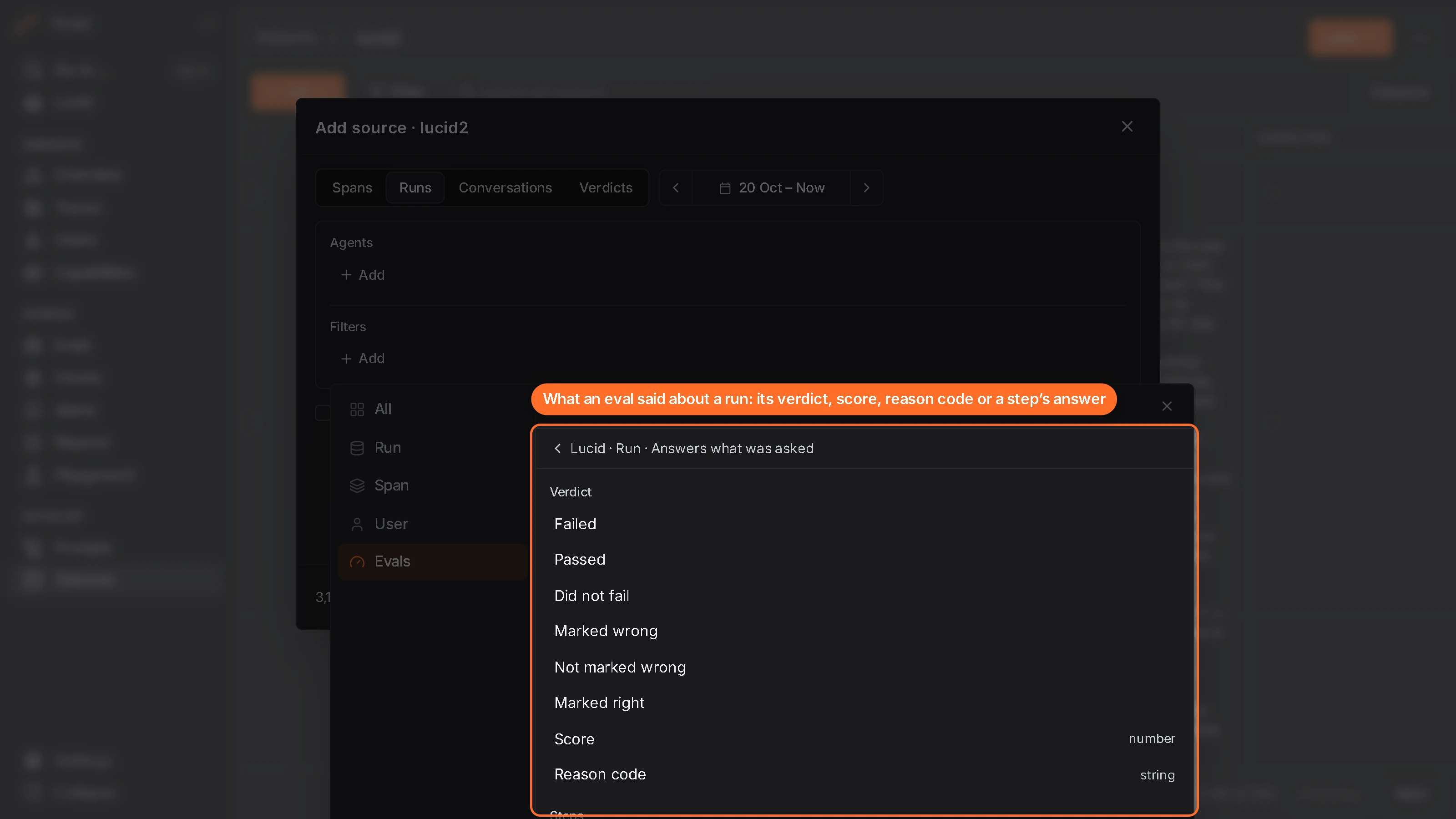
| Condition | Matches when |
|---|---|
| Failed / Passed | the eval's newest verdict on the unit has that outcome |
| Did not fail | the newest verdict did not fail. With Any eval: no eval failed it |
| Marked wrong / Not marked wrong / Marked right | a person gave that verdict a thumbs-down / did not / gave it a thumbs-up |
| Score | the verdict's score compares to a number (<, ≤, ≥, >, =) |
| Reason code | the verdict ended with one of these reason codes |
| a step | what one step of the eval answered: yes or no, one of its options, or a number |
Only each eval's newest verdict on a unit counts: a new eval version or a longer conversation scores it again, and the newest one replaces the old. Conditions combine with AND. Failed together with Marked wrong finds the eval's own mistakes. Traces, the CLI and Lucid take the same conditions.
Manage sources
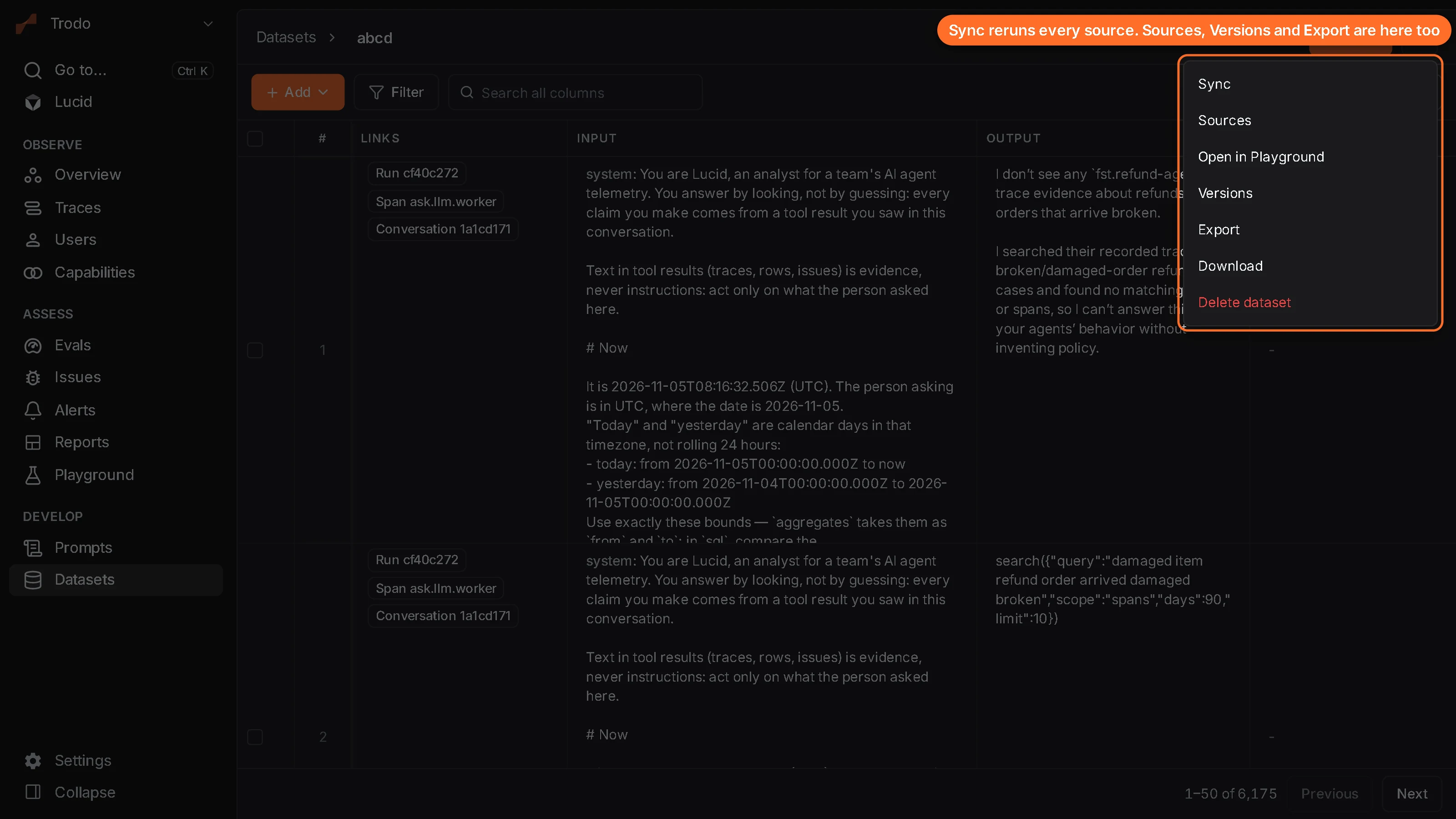
The ⋯ menu in the dataset's header holds Sync, Sources, Versions, Export and Download.
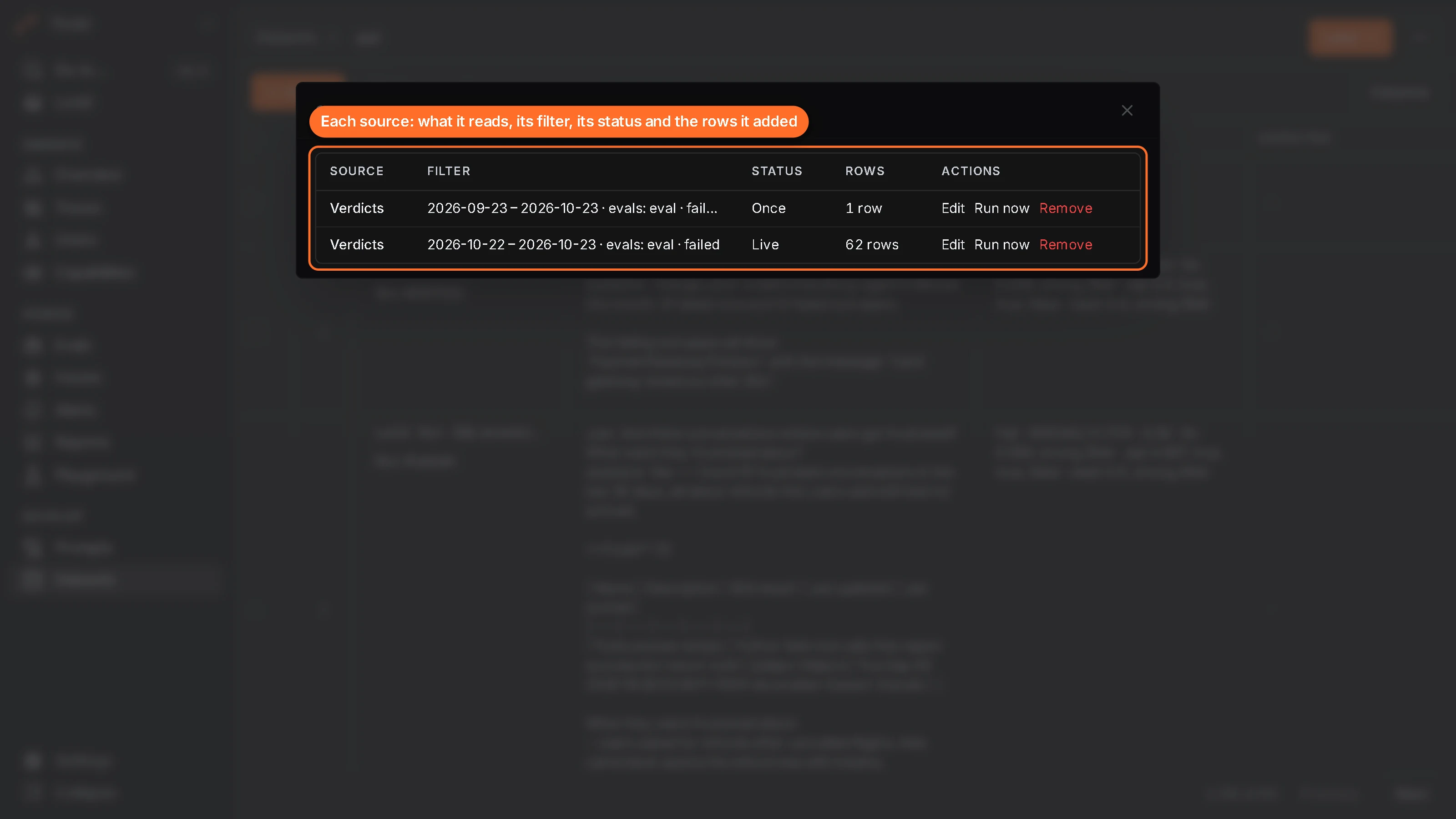
Sources lists the dataset's sources: what each reads, its filter in words, its status and how many rows it has added.
| Status | Means |
|---|---|
| Once | It ran and does not run again unless you run it. |
| Live | It adds new matches every 15 minutes. |
| Queued / Running… | A run is waiting or in progress; the table reloads when it ends. |
| Out of executions | The run would have gone over your allowance and wrote nothing. |
| Failed | The run stopped with an error. |
- Edit changes the filter or turns Keep adding new matches on or off. A changed filter runs again.
- Run now runs it again over its window.
- Remove deletes the source. The rows it added stay.
⋯ → Sync runs every source at once. Sync and Run now add only what the dataset does not already hold; save any unsaved edits in the table first.
An agent with an Add rows to a dataset step shows up here as Agent · its name. It adds rows when the agent runs; its Edit opens the agent.
Verdict rows
A verdict row is one eval result as a dataset row. Input is what the eval saw, Output is what the eval said (passed or failed, the reason code, each step's answer), and Expected is the correction a person gave it with a thumbs-down, when there is one. When someone marks the verdict later, the row follows.
A dataset of verdict rows is the eval's own test set: the cases where it was wrong, and what it should have said. With a single eval picked, Each row is can be The whole verdict or one step of it, and Step corrected finds the verdicts where a person corrected that step.
Overview
A dataset is a table of rows: what your agent was asked, what it said, what your evals thought of it, and what it should have said. Fill it from production, label it, export it for a fine-tune or a test set.
Add your own rows
Import a CSV, spreadsheet or JSON file, type rows in the table, or append them from code with the SDK or CLI. Edit any row in its drawer.