
Add your own rows
Import a CSV, spreadsheet or JSON file, type rows in the table, or append them from code with the SDK or CLI. Edit any row in its drawer.
Not every case comes from production: a golden set from a spreadsheet, fixtures from CI, the five questions a customer complained about. Add them to the same table as your production rows.
In the app
Open a dataset and click + Add:
| Choice | What it does |
|---|---|
| Import | Pick a CSV, TSV, Excel (.xlsx, .xls, first sheet), JSON or JSONL file, then map its columns. |
| Add row | Adds an empty row to type into. |
| Add source | Fills the dataset from your traces. See Fill from production. |
New and edited rows are a draft until you click Save in the header (it shows Unsaved changes until then). The save is one version.
Import a file
Import rows shows the file's columns with its first rows, and where each column goes:
| Goes to | When |
|---|---|
| A dataset column | An input variable the dataset already has. |
| Expected | The answer the row should get. Picked for you for columns named expected, expected_output, ground_truth or target. |
| Metadata | JSON for the row's Metadata. Picked for a column named metadata. |
| New column | A new input variable named after the file's column. The default for anything else. |
| Skip | Left out. |
Add N rows appends them to the table; nothing already there is replaced. In a JSON or JSONL file, each record can be flat ({"query": "...", "expected": "..."}) or nest its variables under input. Values that look like JSON ({...}, [...], true, null) are kept as JSON; anything else stays text.
Edit a row
Click a row to open its drawer. Fields is the row, and Evaluations is the verdicts on it.
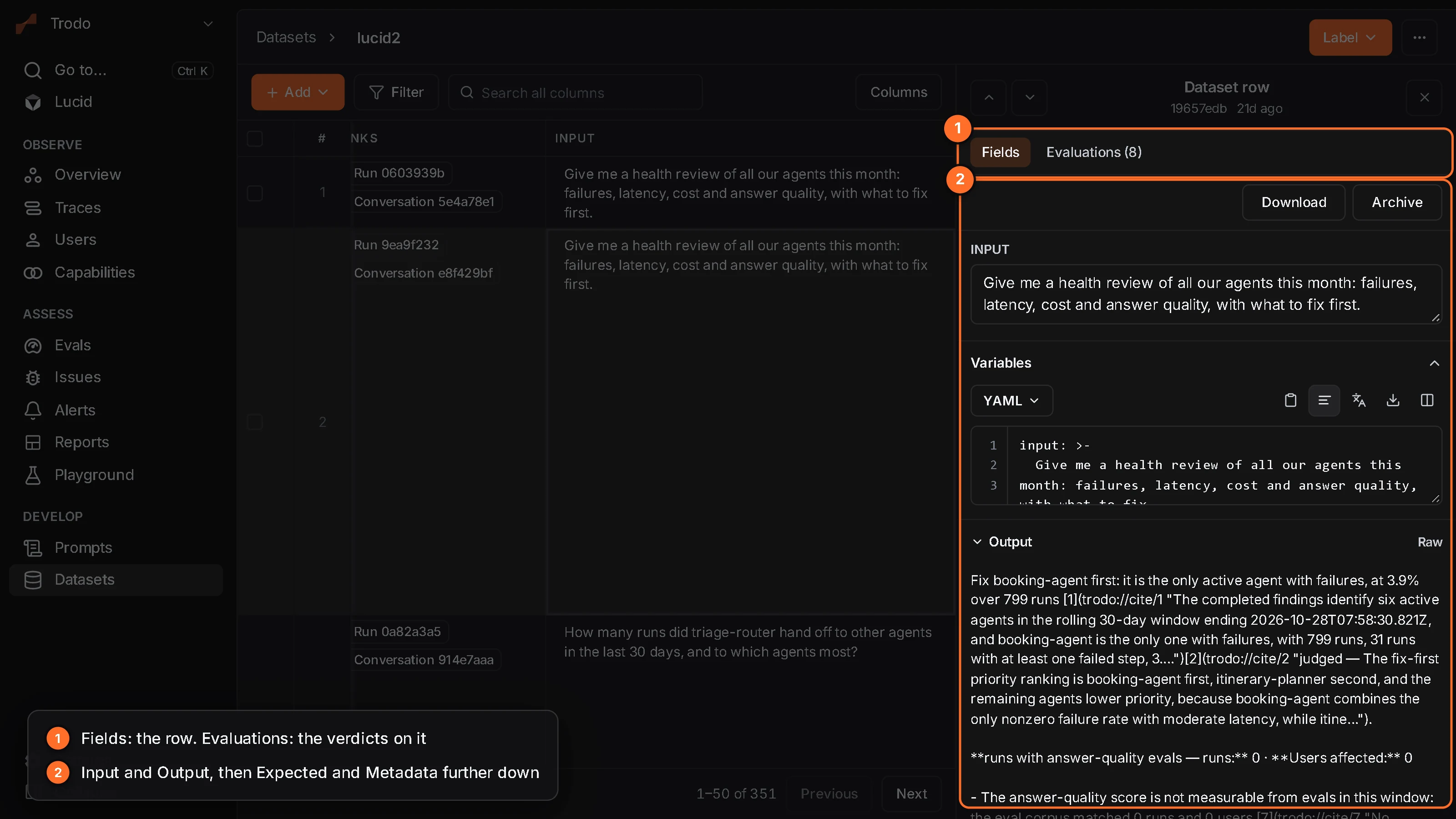
On Fields, edit the Input, Expected and Metadata. Each shows as YAML, JSON or Text to edit, or Pretty, Tree or HTML to read. Input and Metadata must be objects; Expected can be text or any JSON. A row from production also shows its Output and Links. The id at the top is the row's permanent id: click it to copy.
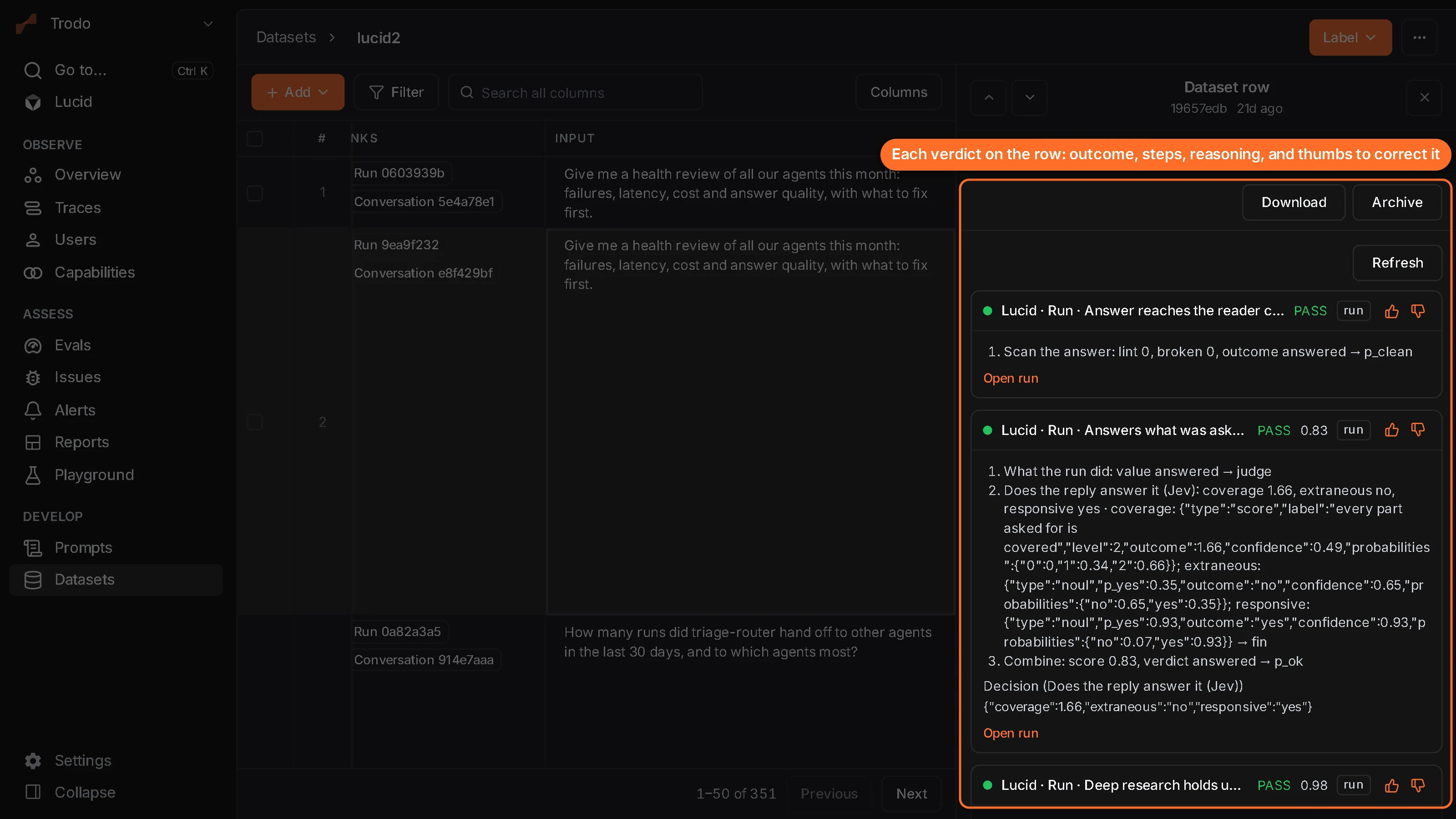
On Evaluations, each verdict shows its outcome, score, the steps it took and a judge's reasoning. A thumbs-up or thumbs-down here is the same correction as on the eval's page. Refresh reads the verdicts again, for example after the eval re-scored the unit.
Use the arrows (or Alt+↑ / Alt+↓) to move between rows, Download to save one row as JSON, and Archive to take it out of the dataset. To act on many rows, tick them: the bar at the bottom offers Export and Archive. Archived rows leave when you save and stay in earlier versions.
⋯ → Download saves the rows your filter shows as a CSV. For training files, use Export.
From code
Append with your site ID
append adds rows from your app or pipeline with the same site ID tracing uses, after init. Name the dataset by name or id; a name that doesn't exist yet is created, unless you pass create: false.
import trodo from 'trodo-node';

trodo.init({ siteId: process.env.TRODO_SITE_ID! });

await trodo.datasets.append('refund-golden-set', [
  {
    input: { question: 'What is your refund window?', locale: 'en' },
    expected_output: '30 days from delivery.',
    metadata: { category: 'billing' },
  },
]);
// → { dataset_id, dataset_name, appended, item_count }
import os, trodo
trodo.init(site_id=os.environ["TRODO_SITE_ID"])
trodo.append_dataset("refund-golden-set", [
{
"input": {"question": "What is your refund window?", "locale": "en"},
"expected_output": "30 days from delivery.",
"metadata": {"category": "billing"},
},
])
# → {"dataset_id", "dataset_name", "appended", "item_count"}An item is either content or a reference to production:
| Item | Becomes |
|---|---|
{ input, output?, expected_output?, metadata? } | A row of your own. input is an object of variables or a list of messages. |
{ span_id }, { run_id } or { conversation_id } | That unit's row, filled like Add to dataset…: Input, Output and Evaluations, Expected empty. Adding it again is skipped. |
{ eval_run_id } | A verdict row for that verdict. |
// Keep a failing production span as a regression case
await trodo.datasets.append('support-regressions', { span_id: failedSpanId });
Manage rows with an API key
Reading rows back, editing them by id, archiving and restoring change data a site ID must not reach, so they use a Trodo API key, the one the CLI signs in with, set as TRODO_API_KEY. They don't need init. Every call that changes rows saves one version; nothing deletes.
import trodo from 'trodo-node';

await trodo.datasets.create('refund regressions', { items: [{ input: 'Refund order 42?', expected: 'Refund within 30 days.' }] });
const failed = await trodo.datasets.rows('refund regressions', { rows: 'failed' });
await trodo.datasets.update('refund regressions', [{ id: failed[0].id, expected: 'Refund within 30 days.' }]);
await trodo.datasets.archive('refund regressions', [duplicateId]); // restore() brings it back
import trodo
ds = trodo.datasets() # TRODO_API_KEY, or trodo.datasets(api_key=...)
ds.create("refund regressions", items=[{"input": "Refund order 42?", "expected": "Refund within 30 days."}])
failed = list(ds.rows("refund regressions", rows="failed"))
ds.update("refund regressions", [{"id": failed[0]["id"], "expected": "Refund within 30 days."}])
ds.archive("refund regressions", [duplicate_id]) # restore() brings it backupdate counts an Expected it writes as a person's; pass label: 'derived' (Python: label="derived") when a rule or model wrote it.
From the CLI
trodo datasets append refund-golden-set -f rows.jsonl   # one row or reference per line
trodo datasets update refund-golden-set -f fixes.jsonl  # {"id": "...", "expected": "..."} per line
See CLI → Datasets.
Fill from production
Turn real traffic into dataset rows: tick runs, spans, conversations or verdicts and add them, or add a source, a saved filter on eval results that copies what matches once or keeps adding new matches every 15 minutes.
Label
Fill Expected, the answer each row should have had: by hand, from verdict corrections, with a labeling agent that runs your models over the rows, or from a script.